
How to setup MQTT ?
The MacSync Wi-Fi series supports MQTT protocol for seamless communication with cloud servers and local brokers. Follow the steps below to configure your MQTT connection.
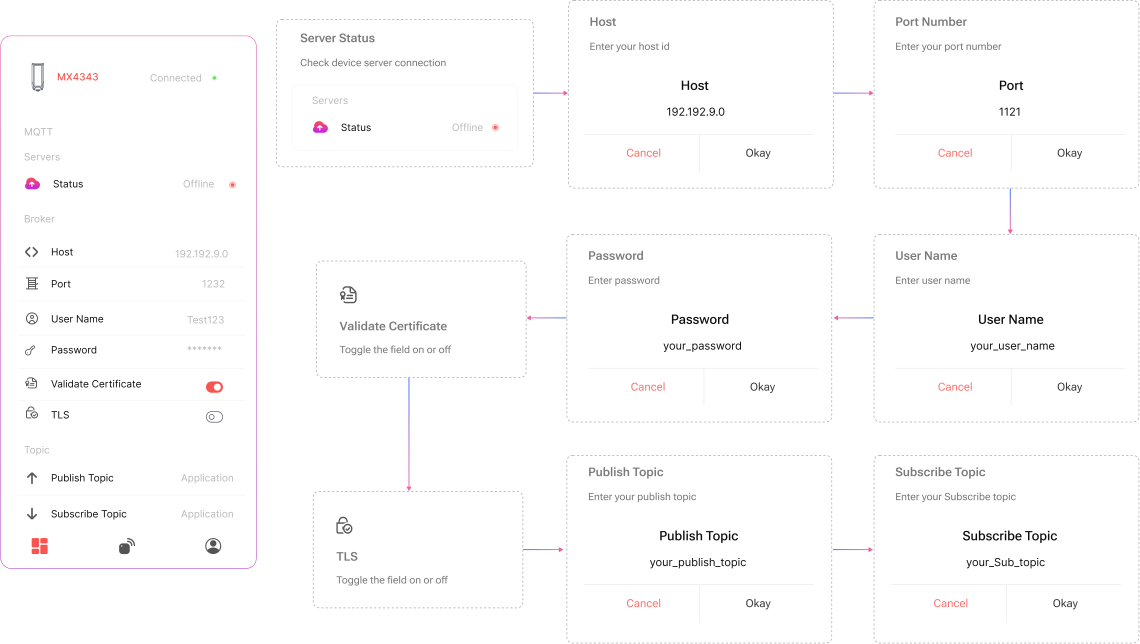
Configuring Broker Settings
1. Enter MQTT Host
- Type the MQTT Broker Hostname or IP Address.
- Example:
broker.hivemq.comor192.168.1.100.
2. Set Port Number
- Enter the Port your broker uses.
- Common examples:
1883for non-TLS8883for TLS
- Common examples:
3. Enter Username
- Provide the MQTT username if authentication is enabled on the broker.
- Leave blank if not required.
4. Enter Password
- Input the corresponding password for the above username.
- The input field is masked for security.
5. Validate Server Certificate (Toggle)
- Use the Validate Certificate toggle to enable/disable server certificate verification.
- ON: Ensures the broker uses a valid certificate (recommended for production).
- OFF: Skips validation (useful for local/dev environments).
6. Enable TLS (Toggle)
- Turn this ON to enable TLS encryption (for secure connections).
- Keep it OFF for plain MQTT over port
1883.
Add Publish Topic
- Define the topic where MacSync will publish data.
- Example:
macsync/device123/data- This could include sensor readings or event messages.
Add Subscribe Topic
- Set the topic to receive commands or configuration.
- Example:
macsync/device123/cmd- Useful for OTA commands, remote configuration, or toggling relays.
Testing & Save
- Once all fields are filled:
- Click the "Test Connection" button (if available).
- Review connection status.
- Hit “Save” to apply the MQTT settings.
Sample Configuration
| Field | Example Value |
|---|---|
| Host | mqtt.example.com |
| Port | 8883 |
| Username | macsync_user |
| Password | ******** |
| Validate Certificate | ON |
| Enable TLS | ON |
| Publish Topic | macsync/device001/data |
| Subscribe Topic | macsync/device001/control |
Related Resources
- Datasheet: MacSync-WX1-PO RS485 and analog to Wi-Fi data logger datasheet
- Datasheet: MacSync-WX1-BO battery-operated RS485 and analog to Wi-Fi data logger datasheet
- Start of this manual: WiFi Datalogger (MacSync) Introduction
- Help: Contact Macnman support